Low Vision Aids: Enhancing Your View
Seeing is believing… There’s no denying it. Yet, eyesight gets weaker with age. In most cases, a pair of bifocals or reading glasses would do the trick. If not, and you face difficulty performing your daily activities, it’s likely you have low vision.
There are about 4 million Americans with low vision and chronic visual impairment, which can’t be corrected with glasses. Surprisingly, low vision and legal blindness are among the leading causes of disability in the United States.
So how does one regain the independence that is compromised because of low vision? Is there some voodoo stuff that’s going to miraculously get your vision back?
Not quite right, but we are close.
Technological advances have given way to several options to surface. Among these options are the low vision aids. For example, electronic magnification offers better benefits than a standard optical low vision device.
There are various types of low vision aids, categorized into optical, non-optical, and high-tech aids. Low vision aids are mostly task-specific and can be used for close-up, intermediate, or distance viewing tasks.
But, though amazing and useful, we will not be focusing on all the categories. We are going to let you in one some secrets of optical low vision aids, and specifically the electronic low vision devices utilizing assistive technologies.
What’s more, they are not just task-specific but can be used across multiple activities.
We have gathered information about some of the major players in wearable electronic assistive low vision devices. Here are the details:
IrisVision
IrisVision Vista is a wearable, hands-free low-vision headset that puts an all-in-one, distance and autofocus solution right in front of your eyes and is controlled by voice or a simple remote. It is designed for intuitive ease-of-use and equipped with powerful connectivity tools that enable greater engagement with the world.
Vista is a lightweight headset that magnifies and enhances what you look at in real time, with everything you need built right in. There is no phone to mount and no complicated setup — you simply put it on and start using it.
Vista is voice-first, so most features can be triggered just by speaking. It magnifies up to 14x with automatic focus, and Wi-Fi is optional. Every purchase includes one-on-one coaching, a 30-day return policy (restocking fee applies), and free U.S. shipping.
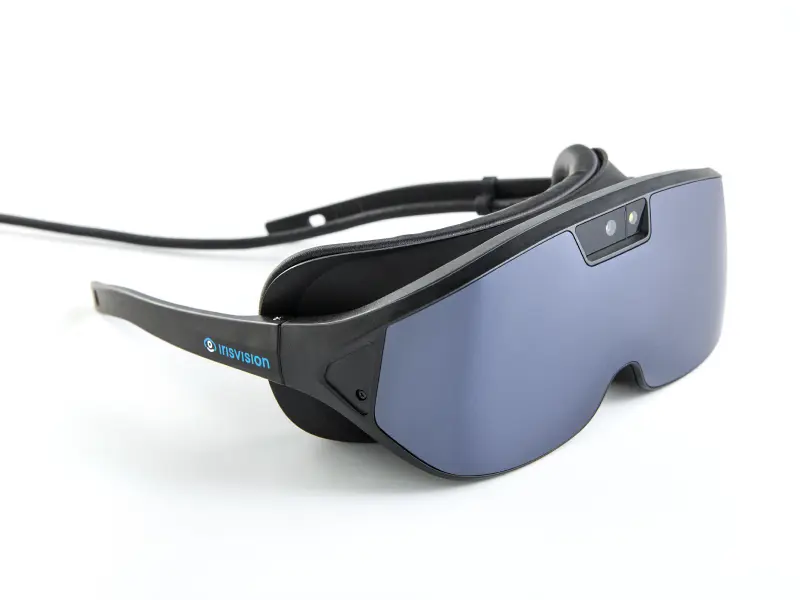
IrisVision low vision aids are intended for anyone with poor vision who wants to make use of their remaining sight. Unlike other low vision devices that are used for specific tasks, Vista can be used for various tasks. As it can be operated wirelessly, there is no need to plug it in or connect it to a network, allowing it to be used both indoors and outdoors.
Reading
People with vision acuities as low as 20/2000 can read with the help of high magnification. This emphasizes that low vision, or extremely low vision, is compatible with reading as long as adequate magnification is available.
We all read, be it for entertainment, news, bills, recipes, navigation, and so on; we just have to read up to a certain level to move about. Vista is equipped with a variety of reading modes that allow users to read certain text in different situations.
-
**Black/White:**This mode is used for reading text material like books or papers without colors. To read magazines or materials in color, you can return to scene mode. This mode, by default, allows the user to read black letters on a white background. The black on white mode enhances the brightness and contrast of letters. This mode is best used when the text and background colors make it difficult to read, like red on pink.
-
Iris (voice-first read-aloud):
This voice-first feature uses Optical Character Recognition (OCR) to read the selected text aloud. You simply center the text, and Vista captures it and reads it back to you hands-free.
-
Inverted Text:
This mode is helpful for various eye conditions as it provides white letters on a black background, enhancing the contrast and reducing the glare on the screen. It makes it easier to read for people who have high sensitivity to light and are overwhelmed by bright scenes. People with eye conditions like glaucoma and retinitis pigmentosa respond well to this mode.
-
Line Reading:
It is similar to the first reading mode in that it presents text only in black letters on a white background. This mode provides a magnification bar in the center that magnifies one or more lines of text, while providing a normal view above and below the bar. This magnification helps overcome common reading mistakes like reading the same line twice or skipping a line.
-
Green Reading:
This mode shows black text on a green background. It helps provide a better contrast without the brightness of a white background.
-
Yellow Reading:
This mode shows black text on a yellow background. It helps provide a better contrast without the brightness of a white background and can be used when reading for an extended period of time as it soothes the eyes.
Entertainment
Living with low vision may restrict the amount of entertainment you get. Vista offers the following entertainment options to keep you up to date with the latest trends and your personal library.
-
Photo Gallery:
The Photo Gallery mode allows you to view the snapshots you have saved to take a trip down memory lane.
-
Video Player:
Video Player mode features voice-enabled search, where you can search for your favorite videos or anything of your interest.
-
YouTube Mode:
This mode is a gateway to staying informed, learning new skills, or searching through shared videos. It has voice-enabled search and bookmarking features.
-
TV Mode:
The Television mode adjusts the light at the center of the TV or computer screen. It is suited for an extended usage time as it doesn’t enter sleep mode after a certain period of idleness.
Daily Routine Modes
To get along with your daily activities, Vista is equipped with different viewing modes that target different eye conditions.
-
Scene:
The Bubble View feature can be accessed in Scene Mode. The view inside the bubble can increase or decrease in magnification as required. Whatever changes are made to the magnification in this mode will appear in the bubble.
-
Bubble View:
This mode places a magnifier bubble on the screen that allows you to magnify a specific section without losing the surrounding context of the view. This feature acts like a viewfinder on the camera.
-
RP (Retinitis Pigmentosa):
With this mode, you can change the field of view of the screen. It helps people with conditions like retinitis pigmentosa or glaucoma. The user can see the view by shrinking the image to a smaller viewing area, which is helpful for tunnel vision.
Vista is available with one-on-one coaching, a 30-day return policy (restocking fee applies), and free U.S. shipping — visit the Vista page for current details.
OrCam
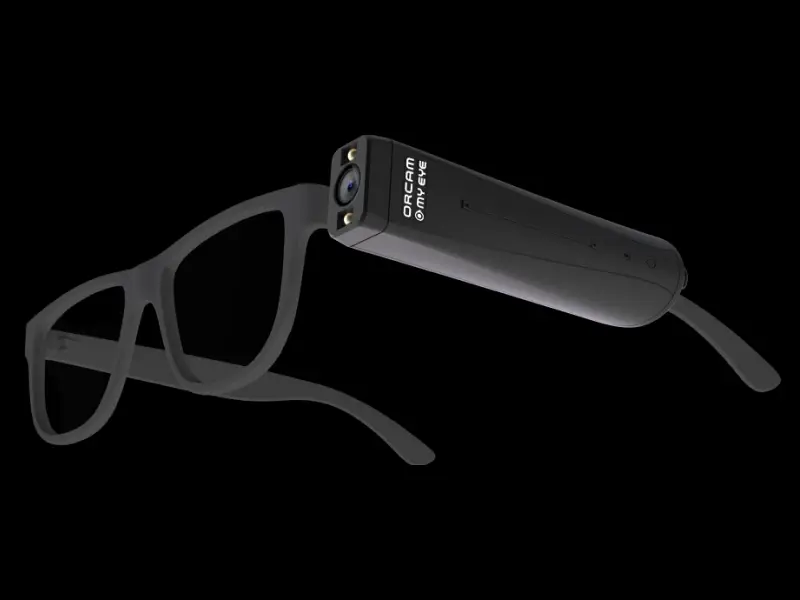
OrCam offers a small, voice-activated camera device that attaches to a pair of glasses and reads text and identifies objects aloud. It is a hands-free reader rather than a vision enhancer — it does not magnify or improve a person’s remaining sight, so it addresses a narrower set of everyday tasks than a full low-vision headset.
IrisVision Vista vs. OrCam at a glance:
| Capability | IrisVision Vista | OrCam |
|---|---|---|
| Enhances remaining vision | Yes — magnifies up to 14x with auto-focus | No — audio only |
| Voice-first control | Yes — voice-first “Iris” read-aloud | Partial |
| Vision modes (Scene, Bubble View, Reading, TV, Outline) | Yes | No |
| Hands-free entertainment (YouTube + Vision Cast) | Yes | No |
| Field-shrink for tunnel vision | Yes | No |
| One-on-one coaching & 30-day returns* | Yes | Varies |
| Free U.S. shipping | Yes | Varies |