Welcome to Vista. This page walks you through your first weeks — at your own pace. Take the weeks in order if you can; skip ahead only if you already know that part.
We recommend having a sighted helper with you for first-time setup. It is done on the phone and takes about 15 minutes. Open the headset, lift out the display unit (the phone), power it on, and follow the on-screen instructions. Watch the Getting Started video to see how.
You will also need Wi-Fi to finish onboarding. After that, you can use Vista without Wi-Fi.
One-time setup is mandatory the first time you use the headset. It cannot be skipped. It starts on Welcome — safety, then Change Language if you want another language — then Wi-Fi, the remote, and putting the headset on.
When you want a setting or a command, the Vista User Guide has the full list. And if you ever need a hand, just say Iris — she’s the voice in the headset.
Print the box insert. Download the Getting Started insert (PDF) — letter, two sides. English steps on the front; other languages on the back.
Watch the tutorials
The Unboxing video shows what is in the case and how to lift the phone out of the headset. The Getting Started video shows first-time setup (onboarding), putting the phone back in, connecting the remote, and your first minutes in the headset.
Unboxing Vista
Getting started with Vista
Week 1 of 4
Getting to know Vista
Finish this week: open the box, finish setup, see a clear picture, and put Vista to sleep. Do not start Week 2 until you can do those four things.
How do I unbox Vista?
Open the carrying case. Inside you should find the headset (with the phone already seated), the remote, the charging cable, wired earphones, a cleaning cloth, and a lanyard.
Vision Cast and wireless earbuds are optional accessories. They are sold separately and may not be in your case.
The Unboxing video walks through each item. Leave the remote nearby — you will turn it on during setup.
How do I remove the display unit?
First-time setup (onboarding) is done on the phone, so take it out of the headset. The Getting Started videos show this step.
Release the IrisVision Display Unit from the headset by pushing the clip away from the Display Unit. Carefully remove the Display Unit and set aside the headset.
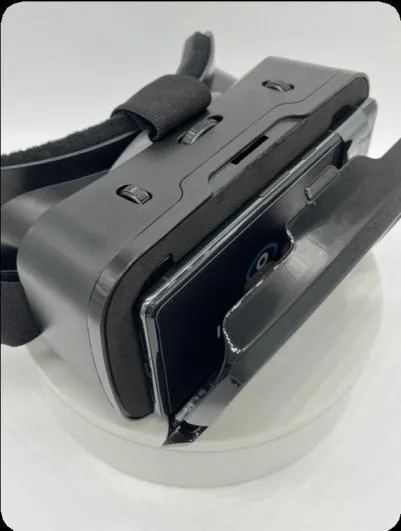
How do I power on the display unit?
Press the power button on the right side (or upper side when in the headset) until the phone vibrates. The first screen is Welcome. Iris introduces herself and reads the safety notes. Tap Change Language if you want another language, then Next. After that she walks you through Wi-Fi and the remote. This sequence is in the Getting Started video.
What languages can I use?
Vista speaks and shows menus in English, Español, Français, Deutsch, Italiano, Português, Русский, العربية, हिन्दी, اردو, 中文, 日本語, and Türkçe. Choose one on Welcome during first-time setup, or later in Settings → Language.
How do I put the phone back in the headset?
After onboarding asks you to put the headset on:
- Center the phone against the lenses.
- Line up the camera with the opening in the front cover.
- Close the cover against the back of the phone until it locks.
- Put the headset on and tighten the side straps. The power button should face up.
Do not walk or drive while wearing the headset. The Getting Started video shows this step.
How do I connect the remote?
The remote is already paired with your Vista.
Press and hold the remote power button for one second until the blue light appears. Connection can take up to a minute. Vista says “Your remote is connected” when it is ready.
If nothing happens, replace the remote batteries and try again. After Vista sleeps, after the remote times out (30 seconds of no use), or after you power the phone back on, turn the remote on the same way.
How do I use the remote?
Your Vista remote has a stick, an Action button, a Back button, a Voice button, and a power button.
- Stick left or right — move to the next or previous mode.
- Stick up or down — zoom in or out in most viewing modes (not RP — see Week 3). Press Action if you want to save that zoom for next time. Vista says “Setting saved.”
- Action — open the menu, choose an item, or save a setting (including the zoom you just set).
- Action (hold) — Quick Zoom in a camera mode.
- Back — close a menu or discard an in-progress adjustment.
- Voice — press or hold to talk to Iris. This only opens the microphone.
In a menu, move the stick to highlight an item, press Action to select it, and press Back to leave.
The remote turns itself off after 30 seconds of inactivity. Press and hold the power button for one second to turn it back on, then wait for “Your remote is connected.”
How do I adjust focus?
Start on Welcome. This is the home screen — a high-contrast image with a blue IrisVision eye in each lens and the word Vista — so you can set clarity before you look at the world.
- Turn the focus wheel above each eye until that side is clear.
- IPD is two steps — you need both. First turn the IPD dial on the top center of the headset until the image feels centered. Then set IPD in the app (Welcome menu or Settings → Headset → IPD): press Action, stick up or down until it looks clear, press Action to save.
- To focus one eye at a time, turn the other lens off from the Welcome menu, then turn both back on.
If you are not on Welcome, push the stick or ask Iris to “go to the welcome screen.”
How do I charge Vista?
Plug the USB-C cable into the port at the bottom of the phone, then into a wall charger. We don’t recommend using Vista while it is plugged in. Charging and using at the same time can make the phone warm. Charge it on the charger, then put it back on when you’re ready. Ask Iris “battery” to hear the level.
Give your eyes a rest every hour or two. Take the headset off for a few minutes — longer if anything feels tired or uncomfortable.
How do I put Vista to sleep?
Ask Iris “sleep,” or go to Settings → Sleep. The display goes dark. Say Iris to wake (Iris Listen must be on), then turn the remote on if it has timed out.
Voice and the remote cannot shut the phone down. Full power-off is in Week 4.
How do I talk to Iris this week?
Press or hold Voice. Wait for the yellow microphone, then speak. Try:
- “What is this mode for?” — Iris explains the mode you are in.
- “Sleep”
- “What time is it?”
You do not need exact phrases. Say “stop” or “never mind” to cancel. More Iris commands are in Week 2.
What should I try first?
After focus is set, push the stick right once into Scene. Scene is the live camera for mid-to-far distance — a room, people, a whiteboard, or the space you are in. Look around. Ask “What is this mode for?” if you want Iris to confirm.
Things to try this week
A few firsts — not a test. Ask Iris; she will handle the rest.
- Look at something you care about — a person, a plant, a clock — and say “take a picture.” You will find it later in Photo Gallery.
- Hold a piece of mail or a cereal box and say “read this.” See if Iris can read a line or two for you.
- Say “YouTube” and play the first video. Watch a minute. You can learn search later.
- Say “open games,” play the first title, and remember your score. Next week you will try to beat it.
Stuck on a button? The User Guide has the full map. Week 2 is looking, reading, and beating that score.
Week 2 of 4
Everyday looking and reading
Finish this week: move between modes, talk to Iris for real tasks, try Reading and Read text, then Bubble and Television. Finish Week 1 first.
How do I change modes?
Push the stick left or right. Vista announces each mode as you land on it. Ask “What is this mode for?” on each one.
You can also press Voice and say the mode — “go to reading,” “scene,” “bubble,” “television,” or “open settings.”
What is each mode for?
A short description of the modes you will meet most this week. Ask Iris “What is this mode for?” on any of them.
| Mode | What it is for |
|---|---|
| Welcome | Home screen. Check focus and start navigating. |
| Scene | Look around at mid-to-far distance — a room, people, or a whiteboard. |
| Reading | Close-up magnifier for text — books, mail, labels, and packaging. |
| Bubble | Magnify one spot with a circular bubble while the rest of the scene stays visible. |
| Television | Tuned for watching a TV or computer screen from across the room. |
| Settings | Headset-wide options — sleep, Iris, Wi-Fi, language, and more. |
Other modes (Bioptic, Outline, RP, Stream TV, YouTube, Movies, Books, Games, Photo Gallery) are in Week 3 and Week 4.
How do I interact with Iris?
Two ways to start
- Voice button — press or hold Voice. A chime plays and a glowing yellow microphone appears. Then speak.
- Say “Iris” — turn on Iris Listen in Settings → Iris, wait for the yellow microphone, then say the command. Do not say “Iris” and the command in one breath.
Useful things to say
- “What is this mode for?”
- “Go to reading” / “go to scene” / “open settings”
- “Zoom in” / “zoom out” / “quick zoom”
- “Increase brightness” / “volume up”
- “Read this” — photograph a page and hear it read aloud, then “play” or “pause.”
- “Take a picture”
- “Sleep”
- “What’s the weather?”
The full list is in the User Guide under Interacting with Iris.
How do I zoom in a mode?
In any camera mode except RP, stick up zooms in and stick down zooms out on the live picture. If you like that zoom, press Action to store it for next time. Vista says “Setting saved.” Back keeps the previous zoom.
Hold Action for Quick Zoom (the level from Settings → Quick Zoom). You can also say “zoom in,” “zoom out,” or “quick zoom.”
RP is different: stick up/down changes viewport size, not zoom. That is in Week 3.
How do I use Reading?
Reading is a close-up magnifier for text. Place the page on a steady surface with good overhead light. Stick up/down zooms; press Action to save that zoom. Press Action again (when you are not on the zoom bar) for flashlight, reading colors, and Read text.
How do I have Vista read text aloud?
Read text photographs a page and reads it to you. You can start it from Scene, Reading, Television, or RP.
- Hold the page in front of the camera with good light.
- Press Voice and say “read this” (or “capture text”), or open the mode menu and choose Read text.
- A countdown from three gives you time to hold still. Vista then reads the captured text.
- Say “play” or “pause,” or use those rows in the menu.
If you change modes during a readout, or pause for 15 minutes, start again. Read text is not available when the language is Arabic or Urdu.
Full steps: User Guide — Read text.
How do I use Bubble?
Bubble is like Scene with a circular magnifier in the center — useful for a sign or a face while you keep the room around it. Press Action, choose Adjust Bubble. It is two steps: stick up/down to set size, press Action to save the size, then stick up/down (or left/right) to place it, press Action to save.
How do I use Television?
Television is tuned for a TV or computer screen. Sit centered in front of the display. Stick up/down zooms; press Action to save that zoom. There is no flashlight in this mode (it washes out a screen). Auto Sleep is delayed while you watch; say “sleep” when you are done.
Things to try this week
Same headset, bigger jobs — and a rematch.
- Open Games and beat your Week 1 score. Write the new number down if it helps.
- Read a whole letter or a page with “read this.” Pause in the middle, then say “play” to finish.
- Put a sign or a face across the room in Bubble and size the circle until just that spot is magnified.
- Sit in front of a real TV or computer and watch a few minutes in Television — then say “sleep” when the show is over.
- Take a picture of something farther away than last week. Compare the two in Photo Gallery when you are ready.
More voice ideas: Interacting with Iris. Week 3 is making Vista feel like yours.
Week 3 of 4
Make it yours
Finish this week: hide unused modes, set Iris and headset comfort, and learn RP (viewport, not zoom). Finish Weeks 1 and 2 first.
How do I hide modes I do not need?
- Go to Settings (stick, or “open settings”).
- Choose Headset, then Modes.
- Press Action on a row to hide or show that mode.
You can show or hide: Bubble, Bioptic, Outline, RP, Television, Stream TV, Movies, Books, and Games. Hidden modes stay available by voice. Welcome, Scene, Reading, Photo Gallery, YouTube, and Settings stay in the carousel.
What are Bioptic and Outline?
- Bioptic — a rectangular telescope window that magnifies one spot while you keep the rest of the scene. Press Action and choose Adjust Box. Same two steps as Bubble: size with stick up/down, Action to save, then place with the stick, Action to save. Details: User Guide — Bioptic.
- Outline — high-contrast edges so shapes and objects stand out. Light, Dark, or Color. Outline Size and Sensitivity are in the menu. Details: User Guide — Outline.
What is RP mode, and why is the stick different?
RP (retinitis pigmentosa) is for tunnel vision. It keeps Scene’s colors, but shrinks the whole picture into a smaller window so more of the room fits in the part of your vision that still works.
In Scene, Reading, and most camera modes, stick up/down zooms. Press Action to save that zoom for later. RP does not zoom that way. Stick up/down changes viewport size on the live picture:
- Stick up — enlarge the window (see more of the scene).
- Stick down — shrink the window (see less of the scene).
- Action — save that size. Vista says “Setting saved.”
- Back — keep the previous size.
Stick left/right still changes modes. Zoom lives in the RP menu (press Action), or say “zoom in” / “zoom out.”
Full steps: User Guide — RP.
How do I change Iris settings?
Open Settings → Iris (only while Iris is on):
- Iris — master switch. Off: turn her back on here with the remote, not by voice.
- Iris Listen — hear the name “Iris” without pressing Voice.
- Iris Sensitivity — how easily she wakes on her name (1–10).
- Iris Talk — spoken prompts. Commands still run when Talk is off.
- Voice speed — how fast she speaks.
Language is Settings → Language.
How do I connect to a different Wi-Fi network?
Vista works without Wi-Fi for viewing modes. You need Wi-Fi for YouTube, Movies, Books, weather, updates, and support.
- Settings → Wi-Fi
- Select the network and enter the password.
On the keyboard, stick highlights a key, Action types, Back closes it.
What is in Settings?
Open Settings with the stick or “open settings.”
| Item | What it does |
|---|---|
| Sleep | Puts Vista to sleep. Say Iris to wake. |
| Quick Zoom | Zoom level used when you hold Action in a camera mode. |
| Volume / Brightness | Headset loudness and display brightness. |
| Iris | How Iris listens and talks. |
| Headset | IPD, viewport, field of view, Adjust View, Auto Sleep, Modes, lenses, Reset Headset. |
| System | Serial number, system info, Left Handed (swaps Action and Back). |
| Wi-Fi | Connect to a different network. |
| Language | Language for menus, Iris, and on-screen text. |
| Vista tour | A guided walk through Vista’s modes. |
| Voice tutorial | Practice waking Iris and saying commands. |
Each viewing mode also has its own menu. The full list is in the User Guide — Settings.
Things to try this week
Make the headset yours — then go a little further than last week.
- Hide the modes you skip. Then say one of those names anyway and confirm Iris still opens it.
- If tunnel vision is part of your story, spend ten minutes in RP and save a window size that feels comfortable. If not, try Outline on a busy room or Bioptic on a distant sign.
- On YouTube, skip the featured list. Say “search” plus something you actually want — a recipe, a hymn, a sports clip.
- Open Photo Gallery, find a Week 1 picture, zoom in, and lock zoom so you can pan across a face or a label.
- Play that same game again. Beat last week’s score — you are two weeks in.
Settings details: User Guide — Settings. Week 4 is movies, books, and your four-week best.
Week 4 of 4
The rest of Vista
Finish this week: try YouTube, Movies, Books, and Games (basic controls), Vision Cast, Photo Gallery, and know how to shut down. These media modes need Wi-Fi except Photo Gallery and Games. Finish Weeks 1–3 first.
What other modes can I use?
| Mode | What it is for |
|---|---|
| YouTube | Search and watch YouTube videos in the headset. |
| Movies | Search and watch free full-length movies. |
| Books | Listen to free audio books. |
| Games | Purpose-built games for the low vision community. |
| Stream TV | Stream your TV into the headset with Vision Cast. |
| Photo Gallery | Browse photos you have taken on Vista. |
YouTube, Movies, Books, Games, and Photo Gallery each have three places you can be: the mode tile, the list, and inside a video, book, game, or photo. On the tile, stick left/right still changes modes. Press Action to open the list right away, or wait about three seconds and Vista opens it for you.
How do I use YouTube?
YouTube needs Wi-Fi. It shows IrisVision videos first.
On the YouTube tile
- Stick left/right — previous or next mode.
- Action — open the video list. Or wait a few seconds and the list opens on its own.
In the video list
- Stick — previous or next title.
- Action — play the highlighted video.
- Back — return to the YouTube tile.
- Press Voice and say “search” plus what you want — for example “search Italian recipes.” Say “clear search” to return to the featured list.
While a video is playing
- Stick left/right — scrub. Move twice quickly to jump farther.
- Stick up/down — volume.
- Action — play or pause.
- Back or hold Action — leave the player and return to the list.
Details: User Guide — YouTube.
How do I use Movies?
Movies plays free full-length films in the headset (Wi-Fi required). The controls match YouTube.
On the Movies tile
- Stick left/right — previous or next mode.
- Action — open the film list (or wait a few seconds).
In the film list
- Stick — previous or next title.
- Action — play the highlighted film.
- Back — return to the Movies tile.
- Say “search” plus the film name. Say “clear search” for the featured list.
While a film is playing
- Stick left/right — scrub (twice quickly to jump).
- Stick up/down — volume.
- Action — play or pause.
- Back or hold Action — return to the list.
Details: User Guide — Movies.
How do I use Books?
Books plays free audio books in the headset (Wi-Fi required). The list and player work the same way as Movies.
On the Books tile
- Stick left/right — previous or next mode.
- Action — open the book list (or wait a few seconds).
In the book list
- Stick — previous or next title.
- Action — play the highlighted book.
- Back — return to the Books tile.
- Say “search” plus the book name. Say “clear search” for the featured list.
While a book is playing
- Stick left/right — scrub (twice quickly to jump).
- Stick up/down — volume.
- Action — play or pause.
- Back or hold Action — return to the list.
Details: User Guide — Books.
How do I use Games?
These games are purpose-built for the low vision community. Installed games work without Wi-Fi; the list updates when you are online.
On the Games tile
- Stick left/right — previous or next mode (Books on one side, Settings on the other).
- Action — open the game list (or wait a few seconds).
In the game list
- Stick — highlight a title. Vista reads a short description.
- Action — start the highlighted game.
- Back — return to the Games tile.
- You can also say “open games” or “play” plus the game name.
Inside a game
- The stick and Action belong to that game (they do not change modes).
- Back or hold Action — leave the game and return to the list.
Details: User Guide — Games.
How do I use Stream TV (Vision Cast)?
Stream TV casts HDMI video into the headset from a TV, computer, or streaming stick. You need the Vision Cast transmitter — sold separately.
- Plug the HDMI cable into HDMI IN on the transmitter, then into your cable box or computer. For a Fire Stick (or similar), plug the stick into HDMI IN.
- Open Stream TV in the headset. For a streaming stick, its setup screens appear in Vista.
- Press Action and choose Connect.
Full steps and Stream TV settings: User Guide — Stream TV.
How do I use Photo Gallery?
Photos you take in Scene, Reading, Television, and other camera modes land here. Photo Gallery has extra zoom and pan so you can look at a photo up close.
On the Photo Gallery tile
- Stick left/right — previous or next mode.
- Action — open the gallery (or wait a few seconds).
In the photo grid
- Stick left/right — next or previous photo.
- Stick up/down — move by row.
- Action — open the highlighted photo full screen.
- Back — return to the Photo Gallery tile.
Looking at one photo
- Stick up/down — zoom in or out (no zoom numbers on screen).
- Stick left/right — next or previous photo.
- Hold Action — Quick Zoom (unless zoom is locked).
- When you have zoomed in, press Action to lock zoom. Vista says “zoom locked.” The stick then pans in all four directions so you can inspect a detail.
- Back unwinds one step at a time: unlock pan → unzoom → close the photo → leave the gallery.
- Delete a photo from the menu.
Details: User Guide — Photo Gallery.
How do I take the Vista tour or the voice tutorial?
One-time setup runs only the first time you use the headset. You cannot replay it. For a refresher, open the Welcome menu or Settings and choose Vista tour or Voice tutorial.
How do I shut down Vista?
Voice and the remote cannot power the phone off. Open the front cover.
- Press and hold the power button and volume up together for a few seconds.
- When the power menu appears, choose Power off.
To turn Vista back on, press and hold the power button until the phone vibrates, then wait about 20 seconds for Welcome. Turn the remote on again.
Things to try this week
You have the controls. This week is for using Vista like it is already yours.
- Search Movies for a film you have always wanted to revisit, and watch the opening.
- Start an audio book in Books — even one chapter counts.
- Play the same game one more time and set your four-week best.
- If you have Vision Cast, connect and watch a show in the headset. If not, search YouTube for the next episode of something you like.
- Show someone else one thing you can do now that you could not on Day 1 — a picture, a page Iris read, or that high score.
Keep going with the User Guide or Troubleshooting whenever you want a deeper dive.
Where do I go next?
- Vista User Guide — every mode, Settings item, and voice command
- Troubleshooting
- FAQ’s
- Coaching — onboarding on the headset, plus a coach who reaches out